York Web Technologies

  • Home
  • Our Blog
  • Domains
  • Hosting
  • Contact Us
  • Home
  • Our Blog
  • Clients
  • Schooner Bay Co
  • Update or link Product Images in Woocommerce
January 2, 2026

Update or link Product Images in Woocommerce

Update or link Product Images in Woocommerce

by Nick / Friday, 05 April 2019 / Published in Schooner Bay Co

Be sure you have properly processed your product images for upload. If you need help to do a bulk upload of images, see this previous post on how to upload images to WordPress.

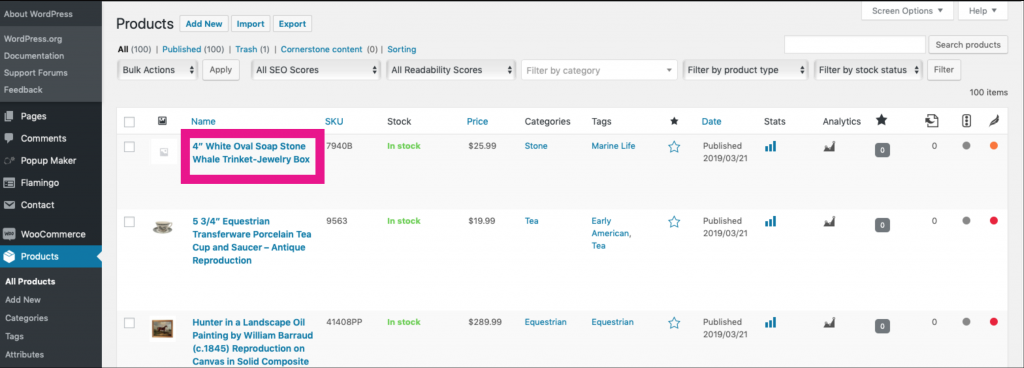
To update or link product images, choose the product you would like to edit. From the WordPress Dashboard>click Products and then click the product Name you would like to edit.
Scroll down to the bottom of the bottom of the Edit product screen and click set featured image:
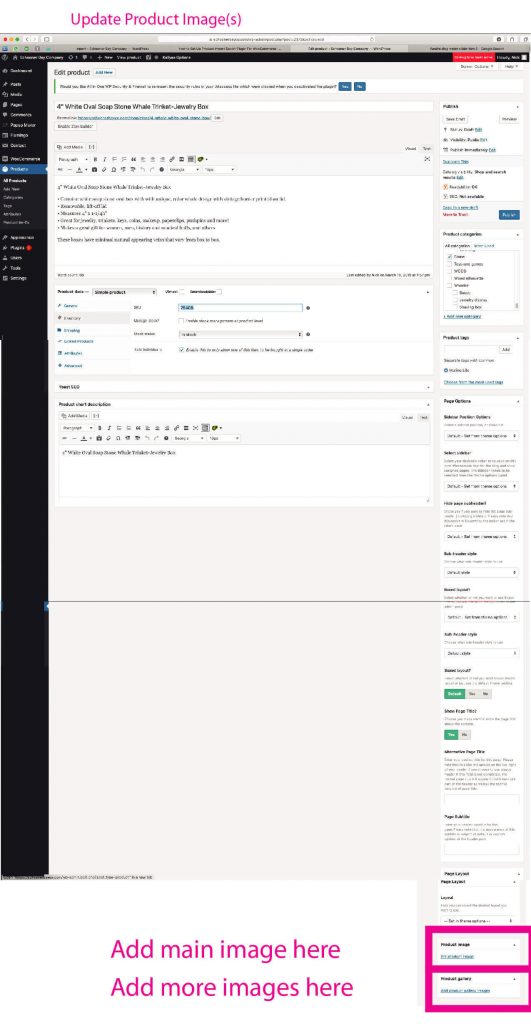
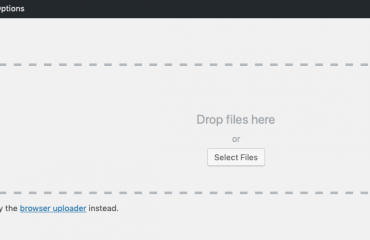
To add a main product image, click the Set product image link in the edit product screen. Search to find the image if you have already loaded it. If you are doing a single product update and have not yet uploaded your image, just drag the image from the folder on your computer to the Media Library tab in your browser and WordPress will upload it and select it for you (how cool is that?).

For Product gallery images, you can choose multiple images and do the same thing. Make sure all of the images you want to add are selected before clicking Set Selected Image(s).
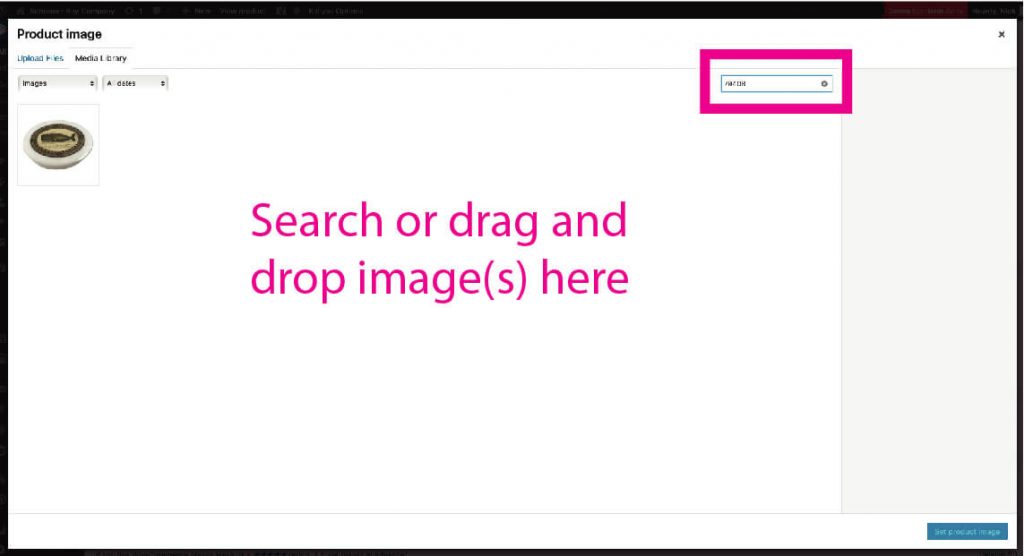
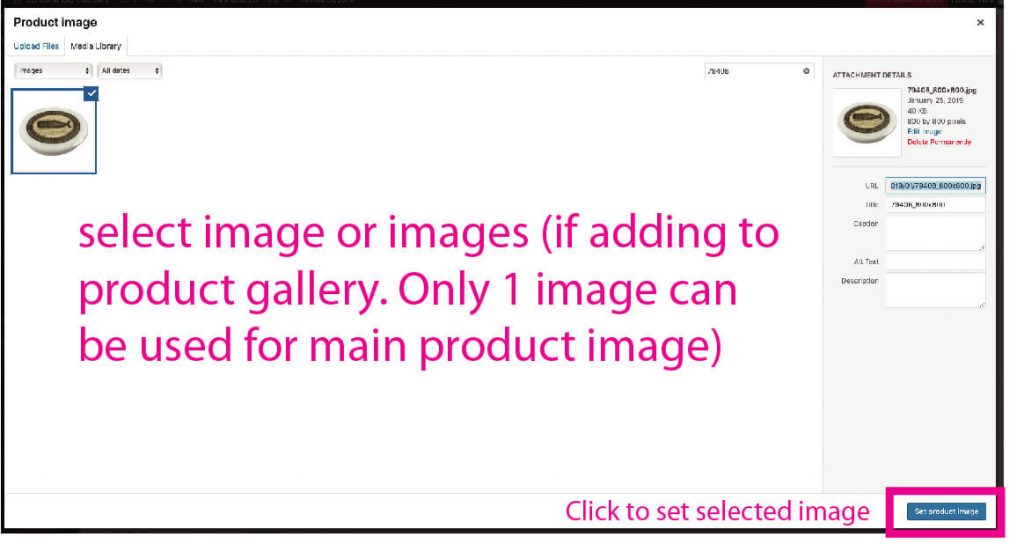
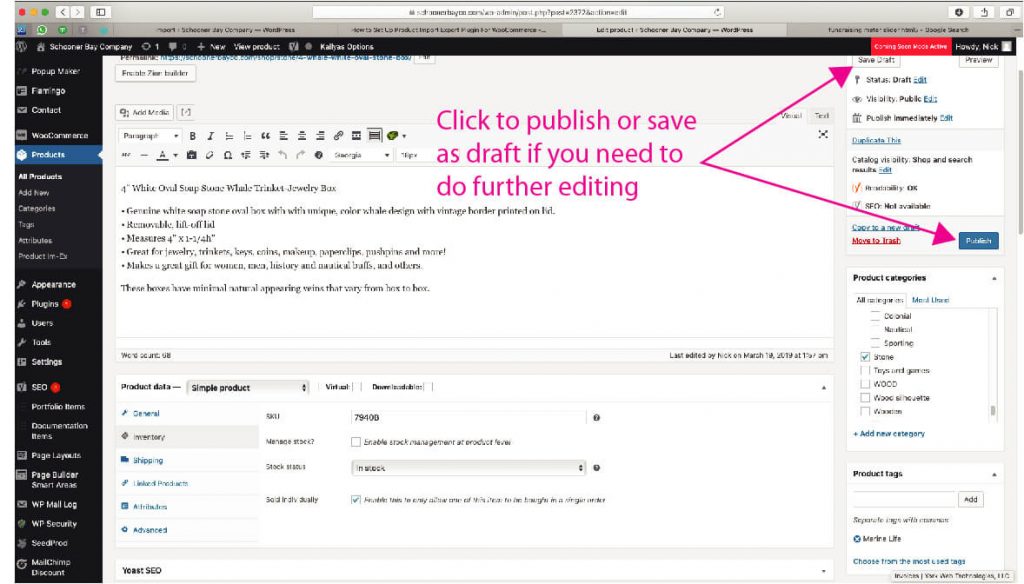
Now you are ready to save the Product Image update, click Save Draft if you have more editing to do, or click Publish to make the product available for sale.
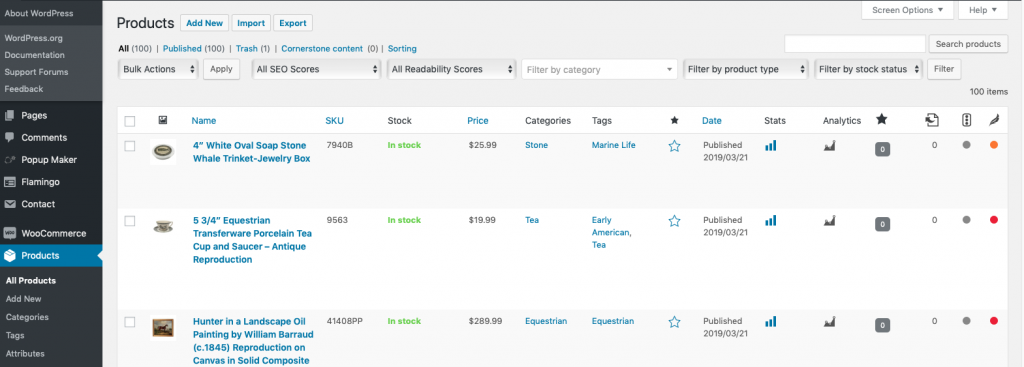
The main product image thumbnail will also now be visible in the Products screen.
Tagged under: SchoonerbaySOP, Tutorial, Woocommerce

About Nick

Nicholas Lamb is the Operating Partner of York Web Technologies, LLC.

What you can read next

Image file naming for Google SEO
WooCommerce Order Processing
Adding a coupon to Woocommerce

Our Blog

  • Clients
    • Abottstown Industries
    • All Trans TTS
    • Blasser Security
    • BnD Treasure Chest
    • GWS Scholarship Fund
    • Heavenly Landscaping
    • Hostetter Supply
    • Integrity Tech Recycling
    • Mountaintop Lighting
    • RackRoiz
    • Schooner Bay Co
    • SPG Capital
    • Spring Valley Mulch
    • Steinmetz Coins & Currency
    • Stony Run Brew House
    • Yates Consulting
    • Yorkshire Church
  • Domains for Sale
  • Jobs
  • Law and Regulatory Changes
  • Mac Tutorials
  • Uncategorized
  • YorkWebTech Services
    • GoDaddy Tutorials

Recent Posts

  • Blasser Security website screen cap

    Blasser Security

    Blasser is an independent and locally-owned sec...
  • screen cap of domain forwarding in GoDaddy

    How to transfer a domain from a non-GoDaddy registrar account to your GoDaddy account

    To transfer a domain from a non-GoDaddy registr...
  • trumpplumbingandheating.com home page screen cap

    Trump Plumbing & Heating

    We would like to welcome Trump Plumbing and Hea...
  • Google Ads Disclosure

    If we administer Google ads on your behalf, her...
  • integrity tech recycling screen cap

    Integrity Tech Recycling

    We are happy to announce the launch of integrit...

York Web Technologies, LLC

PO Box 21472
York, PA 17402
tech@yorkwebtech.com

Google Advertising Guide: Working with Third Parties

Privacy Policy

Accessibility Statement

© 2026 York Web Technologies LLC. All rights reserved.

TOP